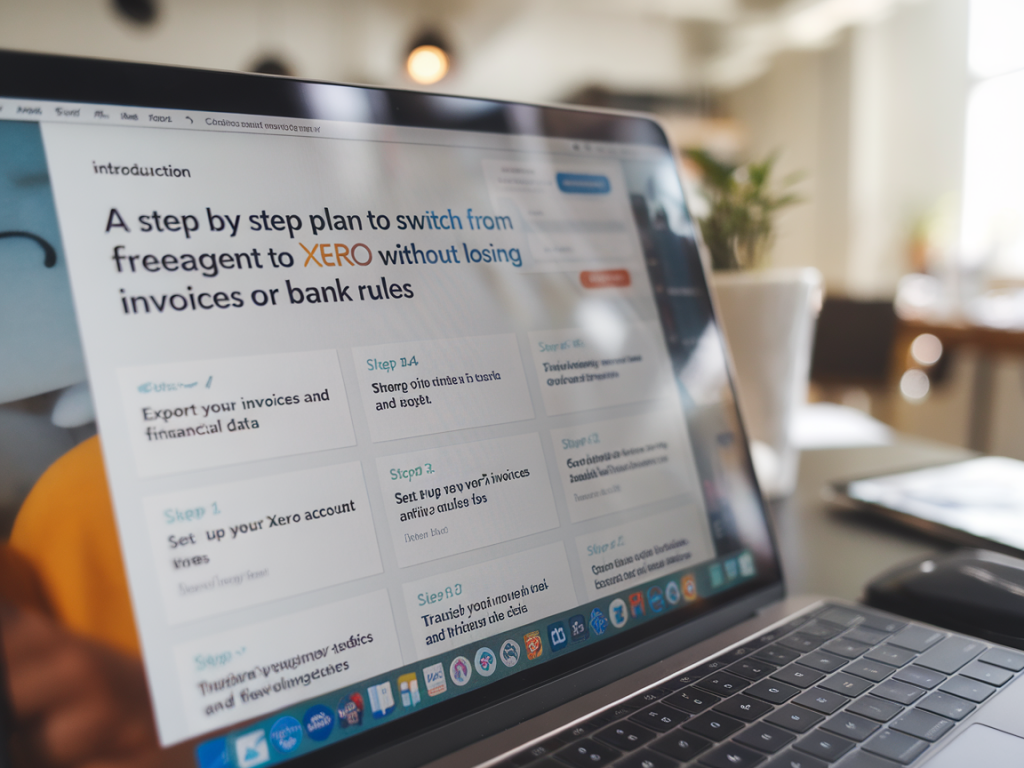
Switching accounting software can feel scary — especially when you’ve got years of invoices, customer balances and a library of bank rules you rely on every month. I’ve helped many small businesses through this kind of migration, and the good news is that with a careful, step‑by‑step approach you can move from FreeAgent to Xero without losing invoices, customer histories or the logic behind your bank rules. Below I walk through the practical plan I use with clients, including the exports, imports and checks that protect your data and keep your bookkeeping running smoothly.
Plan the migration date and scope
First, choose a clear cut‑over date. I usually advise moving at the start of a month or the start of a financial quarter — it makes opening balances and reconciliations simpler.
Decide whether you’ll migrate full history (recommended) or only the current year plus opening balances.Keep FreeAgent active for at least one month after cut‑over so you can cross‑check things and retrieve anything you missed.Communicate with your team and any bookkeeper: pick a migration day with minimal transaction activity (e.g. not a pay run day or VAT return deadline).Export everything you need from FreeAgent
FreeAgent gives you exports for almost everything. Download these and keep them in a clearly named folder (e.g. FreeAgent-export-YYYYMMDD).
Invoices and bills: Export all invoices and bills as CSV or Excel. FreeAgent lets you export sales invoices, drafts and credit notes — get everything.Contacts: Export the client list with addresses, emails and contact numbers.Bank transactions: Export bank transactions for each bank account (CSV).Bank rules: FreeAgent doesn’t have a built‑in bank rules export; you’ll need to capture them manually (see next section).Chart of accounts: Export the nominal list and any custom account codes.VAT returns and history: Export VAT returns and the VAT control account balances.Attachments: Download attachments (invoices, supplier receipts). If attachments are per transaction, create a folder structure that matches exported transaction IDs.Capture and document bank rules
Bank rules are often the trickiest thing to preserve because FreeAgent’s rules can’t be exported directly. I recommend documenting them carefully before switching.
Open each bank rule in FreeAgent and copy its full conditions: payee name contains, amount criteria, tax code, default contact and account mapping.Screenshot rules and save screenshots in your export folder — they can be handy for manual recreation.Create a simple spreadsheet with columns: Rule name, condition (text match or regex), ledger account, contact, tax rate, apply to receipts/payments, notes.Prepare Xero and import base data
Set up your Xero organisation and go through the initial settings before importing transactional data.
Chart of accounts: Import the chart of accounts CSV into Xero (use Xero’s template). Map FreeAgent codes to Xero codes where necessary.Contacts: Import customers and suppliers using Xero’s contact import. Ensure unique identifiers (company number or email) to prevent duplicates.Opening balances: For each bank account and customer/supplier accounts, enter opening balances in Xero dated to the day before your cut‑over. Use the control accounts to mirror FreeAgent balances.Tax settings: Configure VAT rates to match your FreeAgent setup and set the VAT registration date and settings in Xero.Import invoices and bills without losing history
Invoices are the lifeblood of client records. To preserve invoice numbers, dates and statuses, follow this sequence.
Format your sales invoice CSV to Xero’s required template (invoice number, date, due date, contact, line description, quantity, unit amount, account code, tax rate, status). Xero accepts Draft, Awaiting Payment, or Paid. For paid invoices include payment details on import or post payments afterwards.Import sales invoices in batches. After importing, spot‑check key invoices for line accuracy and attachments.For older paid invoices I often post invoice records first as “Awaiting Payment” and then import a bank transactions CSV and match/pay them in Xero — this preserves payment dates and bank references.Import purchase bills similarly. If your bills had attachments, upload them to the corresponding bill in Xero (Xero supports attachments up to its file size limits).Move attachments and receipts
Download attachments from FreeAgent and upload to Xero. If you use Hubdoc or Receipt Bank/AutoEntry, consider importing documents there and letting the supplier push them into Xero.
Organise documents in folders that mirror invoice/bill numbers or contact names so you can easily attach them to the right transactions in Xero.If you have many attachments, do them in phases: high‑value clients first, then the rest.Recreate bank rules in Xero
Xero’s bank rules are powerful. Use the spreadsheet you created earlier to recreate rules precisely.
Open Xero bank account > Bank Rules > Create Rule. For each rule copy the payee text (Xero supports contains or starts with), the account allocation, contact and tax rate.Test each rule: import a small sample of bank transactions and confirm the rule applies as expected. Adjust conditions if the rule overbroadly matches transactions.Import bank transactions and reconcile
With rules in place, import your bank CSVs into Xero and reconcile.
Import bank statement lines into Xero for the full migration period (or use Xero bank feeds to connect live before importing historical statements).Use Xero’s find‑and‑match and the bank rules you recreated to speed reconciliation.For transactions that match invoices, use the “Match” functionality so invoices show as paid in Xero.Reconcile VAT and check control accounts
Verify that your VAT control accounts, debtor and creditor totals match between FreeAgent and Xero after import. Differences are often caused by timing or import formatting issues.
Run aged receivables/payables reports in both systems and compare balances by customer/supplier. Investigate discrepancies line by line.Check the VAT liability balance — ensure VAT returns already submitted in the period you migrated are set as reported in Xero if needed.Testing, validation and go‑live checklist
Before you switch off FreeAgent, run through these checks.
Randomly check 10–20 invoices across date ranges: do invoice number, date, lines, tax and payment status match?Compare bank balances for each account as of cut‑over date.Ensure repeating invoices and direct debit/payment services are set up in Xero (and reauthorise payment links if used).Confirm payroll and pension integrations are set up if you use them; payroll data usually requires recreating in Xero Payroll or migrating via specialist service.Keep FreeAgent archived but accessible for historical reference for at least one financial year.Common pitfalls and how I avoid them
In my experience the failures usually come from rushed imports, overlooked attachments, or bank rule mis‑matches. Here’s how I steer clear of them:
Don’t import everything in one big batch. Small test batches surface mapping issues early.Keep a data log: record which files you imported and any manual fixes you made.Use manual journal entries sparingly — only for correcting opening balance differences once you’ve verified the source.If VAT or payroll looks complex, get a short engagement with a Xero migration specialist — it can save many hours troubleshooting.If you’d like, I can provide the CSV templates and a sample mapping spreadsheet I use with clients when migrating from FreeAgent to Xero. That makes the import process much smoother and reduces the chance of lost data.