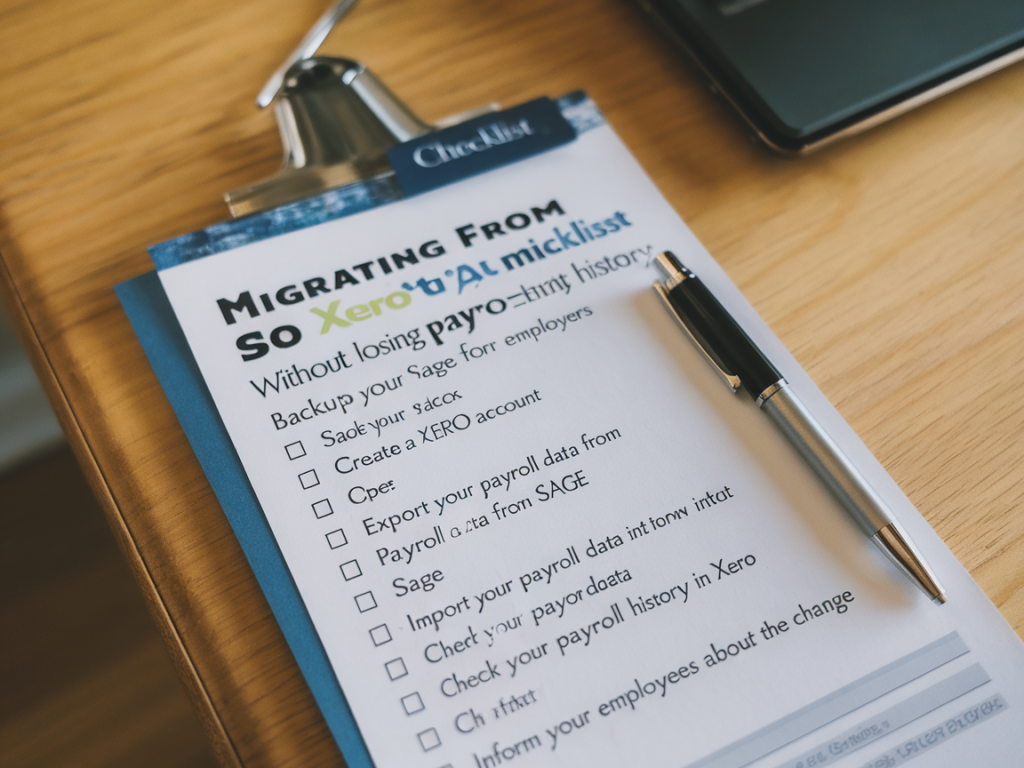
I migrated payroll records for several micro‑employers when clients asked me to move from Sage to Xero, and the thing that worries people most is losing payroll history. I get it — that payroll history is a legal record, it feeds annual reporting, and your employees will want consistent payslips. Over the years I’ve developed a pragmatic checklist that keeps the whole process tidy, compliant and low‑risk. Below I walk you through the steps I use with clients so you can migrate without losing the data that matters.
Why payroll history matters (and what you must retain)
Before we get into the how, it helps to be clear on the what. When I say “payroll history,” I mean:
- Employee details (NI number, DOB, address, employment dates, payroll ID)
- Pay runs and payslips (gross pay, net pay, tax, NI, statutory pay, deductions)
- YTD figures for tax, NI, SSP, SMP, etc.
- RTI submissions to HMRC and EPS records
- Pension contributions and auto‑enrolment records
- Historical payslips and payslip templates employees may request
Some of this must remain accessible for compliance or for employee requests. The goal of migration isn’t necessarily to store every historical payslip inside Xero (that can be bulky) but to ensure that official records and YTD figures are clear and traceable.
Pre‑migration checklist — what I always prepare
Spend time preparing in Sage before you touch Xero. I follow these preparatory steps with clients:
- Run and save finalised payslips for the current tax year and the previous three years (or as required by your retention policy).
- Export payroll reports: Full Year‑to‑Date summary, Individual Employee Year‑to‑Date, Employer Liabilities, RTI submission history.
- Export employee personal data into CSV (names, NI, DOB, addresses, join/leave, payroll identifiers).
- Make a list of any unusual items: attachments, manual adjustments, statutory payments, court orders, termination payments or holiday pay anomalies.
- Check pension provider reports so you have contribution history and reconciliation details.
- Take screenshots of pension and payroll settings in Sage (tax codes, pay frequency, payroll calendar).
Export formats and what to keep
Sage offers several export formats — CSV, Excel and PDF payslips are the most useful. I recommend:
- PDF payslips for employees’ historical records (store these in a document archive or cloud folder).
- CSV/Excel for employee master data and YTD figures (these will be imported into Xero or kept for reconciliation).
- PDF copies of RTI submissions or a report of submission IDs/dates — important for HMRC audit trail.
Importing into Xero — practical steps I use
Xero’s payroll import tools are decent for micro‑employers, but they need good source data. Here’s the flow I typically follow:
- Set up the organisation and payroll settings in Xero first — pay frequency, tax year start, statutory rates (this avoids mismatches).
- Import employee master data using Xero’s CSV template. I map fields carefully: payroll ID, NI number, tax code, start/leave dates, and email addresses.
- Create opening balances / YTD figures in Xero for each employee. Xero allows you to set opening gross pay, tax, NI, and pension YTD amounts for the current tax year.
- Decide how much history to recreate inside Xero. For micro‑employers I usually recreate the current tax year’s pay runs (if there are only a few) so YTD values match and employees can pull payslips. Older years I store as archived PDFs and use the exported YTD summary for reference.
- Import pay runs if needed — you can import pay data from CSV, but complex items (manual adjustments, multi‑earnings) often need manual entry. Test with one or two employees first.
RTI and HMRC considerations
RTI is the heart of payroll compliance. You must:
- Keep the RTI submission reference history from Sage and record it in your migration log.
- Do not re‑submit historical RTI submissions. Instead, set the correct opening YTD figures in Xero and continue with current and future RTI submissions from Xero.
- Inform payroll staff or your outsourced payroll provider of the migration date so the first Xero RTI aligns with the last Sage RTI — avoid duplicate submissions.
Pensions and auto‑enrolment
Pension data often trips people up. My routine:
- Export pension contribution history and employer payment records from Sage.
- Confirm with the pension provider whether they need a new submission or if they can accept Xero’s ongoing files.
- Set up the pension scheme inside Xero and enter opening contribution YTD figures for employees. Keep copies of all opt‑in/opt‑out and re‑enrolment records.
Testing and reconciliation
Never flip the switch without testing. I recommend:
- Run a parallel payroll — process one or two pay runs in Xero while finishing the next run in Sage. Reconcile net pay and employer liabilities.
- Compare tax and NI totals for the tax year to date between Sage exports and Xero opening balances.
- Reconcile pension contributions line by line for a sample of employees.
- Keep a migration log that records who did each step, export filenames, dates and checks performed.
Employee communication and payslips
Employees will have questions. My practical tips:
- Tell staff what’s changing, when they’ll first receive a payslip from Xero and where historical payslips will be stored (e.g. shared HR folder or emailed PDFs).
- Provide a sample payslip from Xero so employees know where to find key figures.
- Keep PDFs of older payslips accessible for statutory periods (you may prefer 3–6 years depending on policy).
Useful tools and integrations
Depending on your setup, I’ve used:
- BrightPay or IRIS as intermediate tools when clients wanted extra control over exports.
- Xero payroll import templates and the Xero API for bulk imports when there are many employees.
- Document storage: secure cloud folders (Google Drive, OneDrive) or your HR portal to archive PDFs.
Migration checklist table
| Task | Status | Notes |
|---|---|---|
| Export PDF payslips (current & historic) | ||
| Export RTI submission history | ||
| Export employee master CSV | ||
| Export pension contribution history | ||
| Set up Xero payroll settings | ||
| Import employees into Xero | ||
| Enter opening YTD balances | ||
| Run parallel pay runs and reconcile | ||
| Confirm pension provider setup | ||
| Inform employees and provide sample payslip |
If you’d like, I can tailor this checklist to your exact setup — tell me how many employees you have, which Sage product (Sage 50, Sage Business Cloud Payroll, etc.) and whether your pension is handled in‑house or via a provider. I’ll outline the minimal migration path that preserves the payroll history you need without creating unnecessary work.